Enterprise software often creates value across a sequence rather than inside one screen. That makes product demos harder to plan. Show every field, filter and permission, and the viewer loses the workflow. Stay too high level, and the product feels vague.
The useful middle ground is a workflow-led demo: one business object, a small number of meaningful decisions and a clear line from the initiating action to the visibility created at the end.
Why complex workflow demos become confusing
A long feature tour asks the audience to remember disconnected screens. A workflow story gives those screens a reason to exist. Each view answers a practical question: what happened, who acts next and what changes because of that action?
This distinction matters for enterprise SaaS because several roles may touch the same process. The demo does not need to explain every role or edge case. It needs to preserve the handoff between the few actions that make the product model understandable.
Map the workflow before animating screens
Write the process in plain language before recording or rebuilding any interface. Identify the event that starts the workflow, the object that moves through it, the decisions that change its state and the information produced when the workflow is complete.
Then remove any screen that does not help the viewer understand one of those points. Navigation, settings and secondary filters may be important in the product, but they do not automatically belong in the main story.
Use one request as the narrative spine
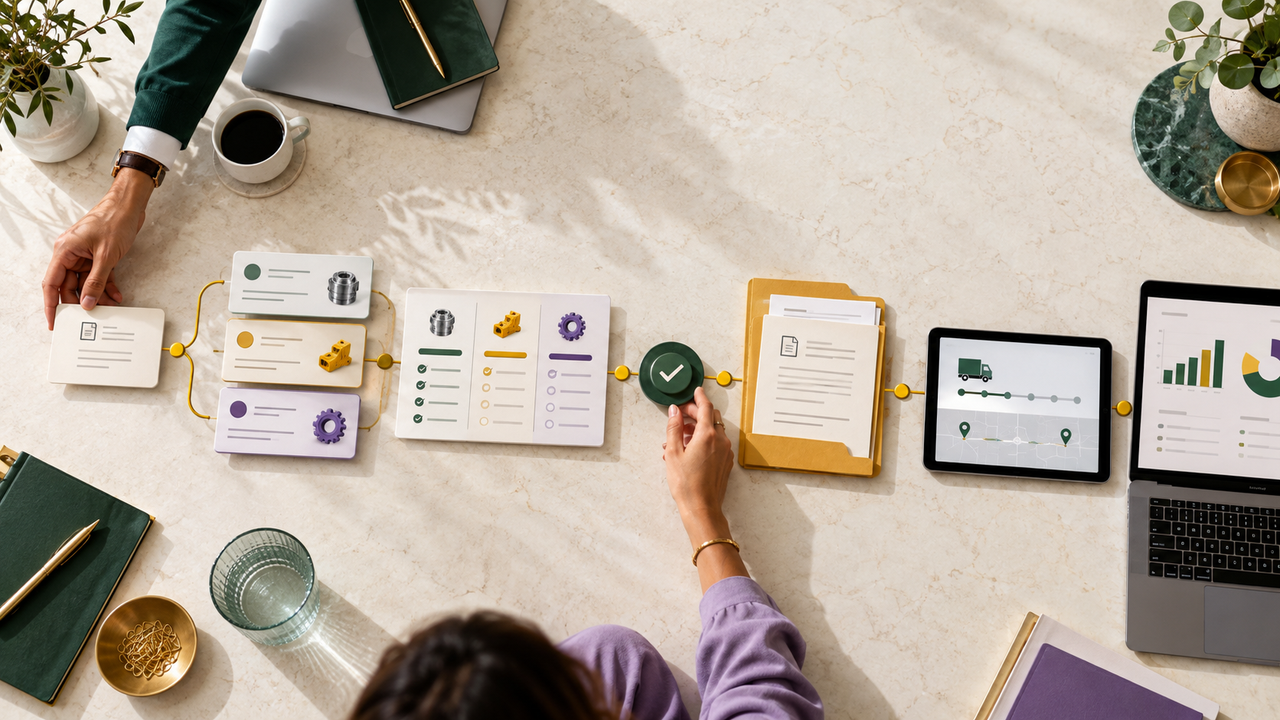
The ProcureChain procurement SaaS product demo is a useful example. The approved product workflow is: create a requisition, generate an RFQ, collect supplier quotations, review and approve, create a purchase order, track procurement activity and analyze spend.
That sequence is the story. Following one requisition keeps the audience oriented while the interface changes. The viewer can see how the same procurement activity develops from an internal request into supplier comparison, approval, ordering, tracking and analysis.
Show decision points and handoffs, not every screen
Give the most time to moments where the user creates information, compares options, makes or records a decision, produces an operational output or gains visibility that was not available at the previous stage.
- Creation moments such as a requisition, RFQ or purchase order.
- Comparison moments such as reviewing supplier quotations.
- Control moments such as review and approval.
- Visibility moments such as procurement status, alerts and spend analysis.
These moments form a selective tour of the product. The rest of the interface can remain visible as context without competing with the action being explained.
Connect the operational and analytical views
Enterprise platforms often serve both day-to-day users and people who need oversight. In ProcureChain, the operational story includes requisitions, RFQs, supplier quotations, approvals, purchase orders and procurement tracking. The analytical view includes total spend, budget versus actual, savings, spend variance, supplier concentration, category analysis and activity alerts.
A coherent demo shows how those views belong to the same system. Instead of cutting abruptly to a dashboard, connect the completed workflow to the information now available for monitoring and analysis.
Use motion to preserve context
UI animation should direct attention without making the interface feel unrelated to the product. Keep a stable visual frame, highlight the active control and show state changes close to the action that caused them.
- Zoom only when a field or decision needs emphasis.
- Use transitions to show movement between workflow stages.
- Reduce surrounding detail while keeping enough interface context for orientation.
- Return to the wider workflow when a stage is complete.
Protect product accuracy
Build the visual story from approved product references. Simplification can improve hierarchy, pacing and legibility, but it should not introduce capabilities, results or technical details that the product does not support. If a visual is conceptual rather than a verified product screen, present it as an illustration.
A practical enterprise SaaS demo structure
- Establish the business process and the friction the platform is designed to organize.
- Introduce the first action and the object that will move through the workflow.
- Follow that object through the few stages that reveal the product model.
- Pause at comparisons, approvals and handoffs that affect the next step.
- End with the tracking or analytical view created by the completed activity.
- Close with the next action you want the buyer to take.
Choose the right level of product detail
A workflow-led demo is most useful when the audience needs to see the product in action. If the first challenge is explaining the broader problem and value proposition, compare a SaaS explainer video with a product demo before choosing the format.
Once the format is clear, a SaaS explainer video storyboard can help organize the narrative, interface moments and transitions before production begins.
Turn your enterprise workflow into a focused product demo
If your SaaS product spans multiple roles, approvals and reporting views, Nxtale Studios can help you reduce the journey to a clear, accurate visual story. Explore our product demo video service and share the workflow you need buyers to understand.